Feeds
A feed is a curated collection of model run results. Feeds are the recommended way to programmatically connect RiskScape Platform model results to external tools, like dashboards.
Feeds are curated, in that you need to manually add model runs to the feed before feed “subscribers” can see the results. This gives you a chance to verify the model results are suitable for wider consumption.
The same project can have multiple feeds. This lets you disseminate different results to different groups of people. For example, the same project could have an ‘Impact Forecast’ feed that works as an early warning for upcoming weather-based hazards, and a ‘Post-Event Response’ feed that highlights the likely damage in the immediate aftermath of an event.
Why use feeds?
Feeds are primarily intended to allow programmatic access to model results, such as displaying results in a custom third-party dashboard. The model results in the feed are accessed via the Platform API, which works great for computer access, but is less suitable for humans.
If you just want to share model results with other people, here are some alternative ways of doing that:
Guest links let anyone with the link view that set of model results. This is useful for sharing model results with people who don’t have a Platform account. Each guest-link only corresponds to a single set of results - if you re-run the model again, then you’ll need to create and distribute a new guest-link for the new set of results.
The Viewer role lets you share all model results with a Platform user. Viewers on a project can see all the project’s input data and model pipelines as well, and they need to have a Platform account they can login with.
Notifications let you automatically send email notifications to either registered Platform users or via guest links, when scheduled model runs finish.
Creating a feed
To create a new feed, you need to be a project editor or admin. Go to your project, click on ‘Feeds’ in the left-hand navigation panel, and then click the ‘New feed’ button on the top right.
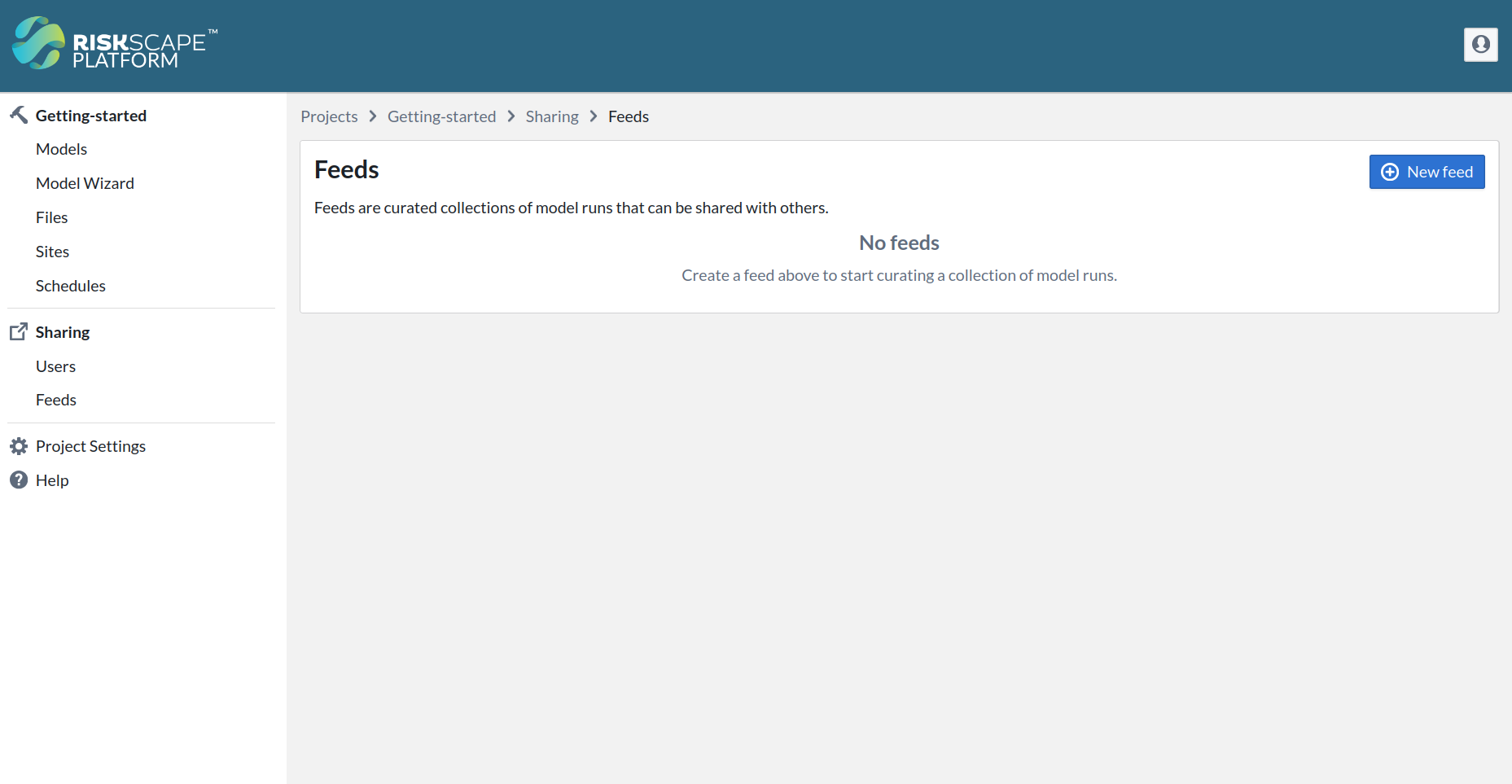
Give your new feed a suitable name and description, e.g. “Dashboard”.
Adding results to a feed
Model run results for the project don’t get automatically added to the feed - this is
a manual step you need to do.
Once you have verified that the model run results are valid, click the  ‘Add to feed’
button in the results, and select which feed(s) to add the results to.
‘Add to feed’
button in the results, and select which feed(s) to add the results to.
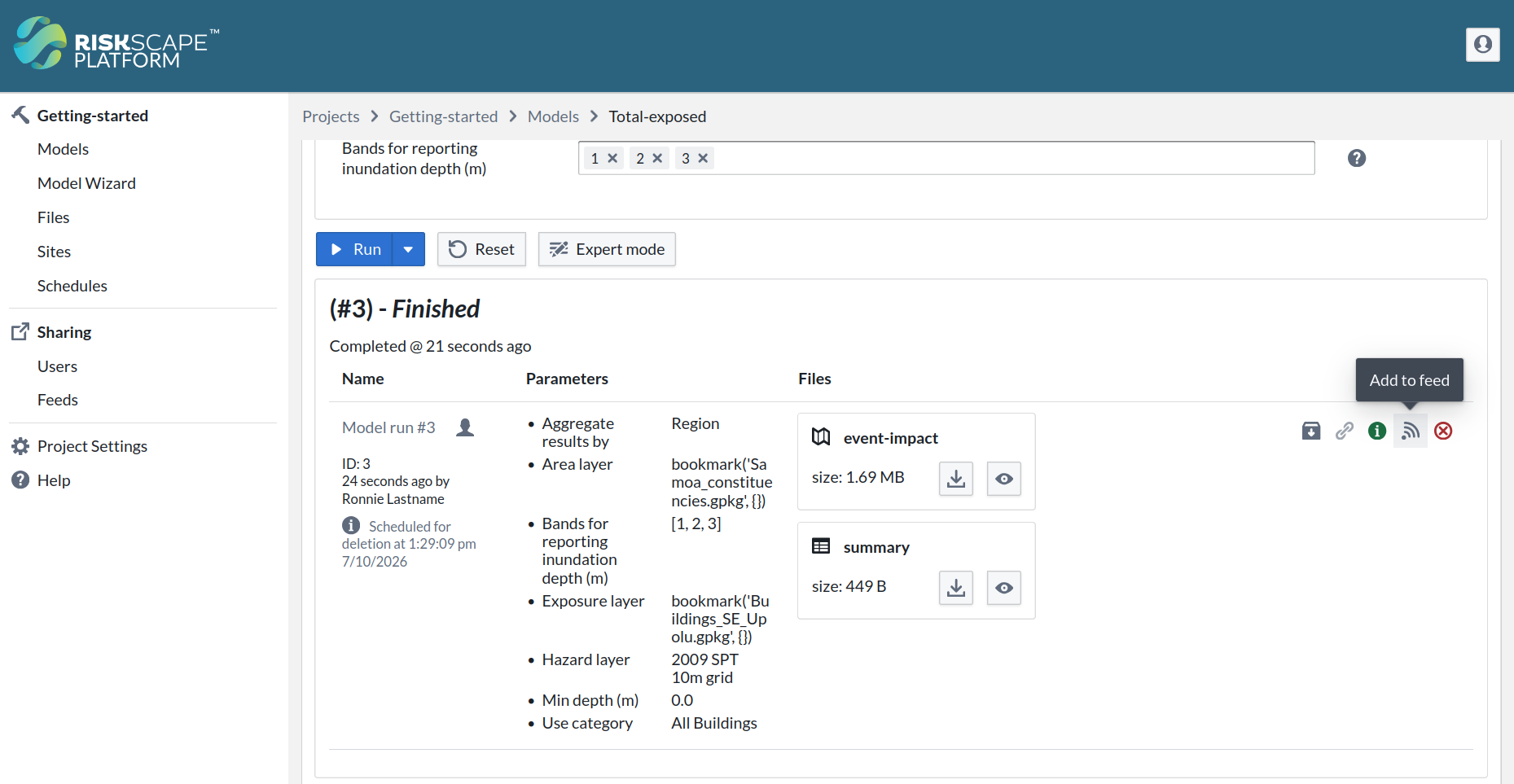
To remove results from a feed, you can follow this same process and simply deselect the feed. Clicking on the Feeds link on the left-hand navigation pane will also show you all the model results currently in a feed - you can also remove results that way.
Accessing a feed’s results
Accessing the results in a feed is done via the Platform API and requires an access token.
Creating an access token
A feed token is a special kind of access token. It gives read-only access to a single feed and all the model run results in that feed. If you have a feed access token, you can access model run results without needing a Platform user account.
Warning
Feed access tokens are intended for use with third-party scripts or applications, but they still contain sensitive information. Anyone with the access token can view your model results, so be careful how you share and store your feed access tokens.
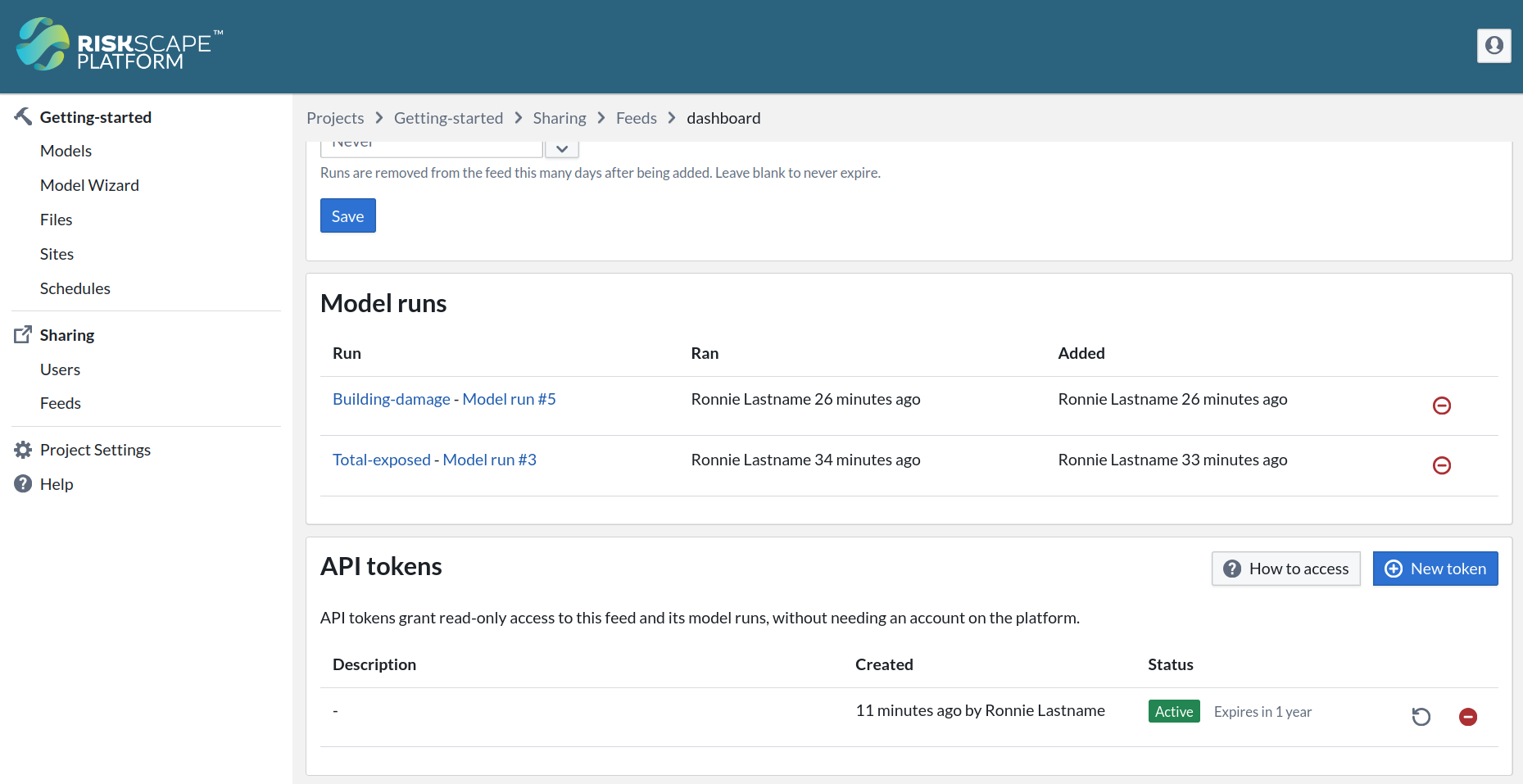
To create a new feed access token, simply click on the Feeds page in the left-hand navigation pane for your project. There will be an ‘API Tokens’ section at the bottom of the page - simply click the ‘New Token’ button to create an access token.
Note
Save the secret somewhere safe, like a password manager - it will only be shown to you once. The Feeds page also lets you revoke or renew existing feed access tokens.
Using the feed token
To access a feed via the API, you can use HTTP Basic authentication with TOKEN as the
username, and the token’s secret as the password.
You can refer to the API Authentication page for more
details on using access tokens.
Accessing a feed is slightly different to accessing other API resources.
You don’t need to specify the name or the ID of the feed you’re interested in,
as the feed access token is already enough to identify the feed.
The /api/feeds/token URL will automatically resolve to whichever feed the token
belongs to.
Note
The /api/feeds/token URL only works if you have authenticated with a feed token. It will return a “404 - Not Found” error if you try to visit this URL using your browser session.
You could use the following command to query information about a feed,
assuming that you have setup an environment variable
called RISKSCAPE_TOKEN that contains your feed access token.
curl -s -u TOKEN:$RISKSCAPE_TOKEN https://riskscape.nz/api/feeds/token
If you are logged in to the Platform, then you can explore the Feeds API
in your browser, using your browser’s login session as authentication (instead of the feeds token).
Use the /api/feeds/by-id URL and use the ID of the feed you’re interested in.
Any /api/feeds/by-id/ routes should also work under /api/feeds/token/.
For example, assuming your access token is for feed ID 1, then the following commands would list all model runs in that feed. The commands are essentially equivalent, and both can be used with the feed access token.
curl -s -u TOKEN:$RISKSCAPE_TOKEN https://riskscape.nz/api/feeds/by-id/1/model-runs/query
curl -s -u TOKEN:$RISKSCAPE_TOKEN https://riskscape.nz/api/feeds/token/model-runs/query
Each entry returned by the model-runs query corresponds to a /api/model-runs/by-id/{id} URL.
Because the model run is in the feed, the feed token also lets you access selected
/api/model-runs/by-id/{id} information.
Note
A feed token can only read information from the feed. It cannot modify anything about the feed itself.
Getting the latest model run’s output
The API /api/feeds/token/latest URL resolves to the model run that was most recently added to the feed.
It returns the same information that /api/model-runs/by-id/{id} does.
This is a convenient way to access the latest model results via a static link.
For example, you can use the following command to access details about the latest model run:
curl -s -u TOKEN:$RISKSCAPE_TOKEN \
  https://riskscape.nz/api/feeds/token/latest
The response contains information about the outputs that the model run contains.
You can download a specific output using /api/feeds/token/latest/output/NAME/download
where NAME is the name of the output you want. For example, if the model run
contained a summary CSV output, then you could download it using:
curl -s -u TOKEN:$RISKSCAPE_TOKEN \
  https://riskscape.nz/api/feeds/token/latest/output/summary/download \
  -o summary.csv
The next time a newer model run is added to the feed, the same URL will return that run’s output instead, without anything needing to change.
Getting older model run outputs
To download a results file for an older model run in the feed, you would
need to access it via the /api/model-runs API. The /api/feeds/token/model-runs/query
response will contain the IDs of all the model results in the feed - you can
then use the ID to access an output file via /api/model-runs/by-id/ID/output/NAME/download.
For example, to access the summary CSV output for model-run 7, you would use:
curl -s -u TOKEN:$RISKSCAPE_TOKEN \
  https://riskscape.nz/api/model-runs/by-id/7/output/summary/download \
  -o summary.csv